

Animated SVG terminal recordings.
Write a script, run dvd, get an infinitely-scalable animation you can drop in any README.


Quick start · Why SVG · Recording · Syntax · Themes · CLI · FAQ
DVD turns terminal output into a single self-contained animated SVG. No ffmpeg. No headless browser. No video encoder.
Because the output is SVG, it is text: the frames are real glyphs, so the result stays sharp at any zoom, weighs almost nothing on the wire, and can be edited, diffed, and version-controlled like source.
npx dvdrw-cli demo.cd
| Homebrew |
brew install tool3/tap/dvd |
| Shell |
curl -fsSL https://raw.githubusercontent.com/tool3/dvd-cli/master/scripts/install.sh | bash |
| npm |
npm install -g dvdrw-cli     # global
npx dvdrw-cli --help         # no install
npm install -D dvdrw-cli # per-project |
The npm package is
dvdrw-cli; the binary it installs isdvd. Withnpxyou must use the full package name:npx dvdrw-cli.
dvd new demoThat scaffolds demo.cd:
Output demo.svg

Set Template macos
Set Theme dracula
Set Title "My Terminal"

Type "echo 'Hello World!'"
Sleep 500ms
Enter
Sleep 1s
Render it:
dvd demo.cdThen embed it anywhere that takes an image:
An honest comparison — including where DVD is the wrong tool.
| DVD | VHS | asciinema | |
|---|---|---|---|
| Output | animated SVG + MP4/WebM/GIF | GIF / MP4 / WebM | .cast + player |
| External binaries to render | none for SVG, ffmpeg for video | ffmpeg, ttyd | none |
| Resolution-independent | yes (SVG) | no | yes |
| Text is real text | yes (SVG) | no | yes |
Works as a plain <img> |
yes | yes | no (embed) |
| Single self-contained file | yes | yes | no (needs player/host) |
| Loop styles | 4 modes | basic | basic |
| Print / retina quality | yes (SVG) | no | no |
| Video for social & slides | yes | yes | no |
| Hosted sharing & playback | no | no | yes (asciinema.org) |
Use DVD for README embeds, docs sites, and anywhere you want a crisp, tiny, text-based animation — and reach for -o demo.mp4 when you need a video of the same recording.
Use asciinema when you want hosted, shareable, pausable playback with a real player.
Raw SVG output looks large, but it is highly repetitive text and every HTTP server gzips it. Measured from examples/:
| File | Raw | Gzipped |
|---|---|---|
intro_original.svg |
2.4 MB | 39 KB |
rainbow.svg |
272 KB | 8 KB |
chartscii-stdin.svg |
3.7 MB | 304 KB |
The wire cost is small. The real cost of a very long recording is DOM size and browser memory, not bandwidth — see FAQ.
SVG does not embed on social platforms, and some places want a real video. Give --output a video extension and you get one:
dvd demo.cd -o demo.mp4       # H.264, yuv420p — plays everywhere
dvd demo.cd -o demo.webm      # VP9
dvd demo.cd -o demo.gif       # palette-optimised GIF
Works the same for the other two input modes:
chartscii 3 5 8 -e | dvd -o chart.mp4
dvd render session.cast -o session.mp4Video is entirely opt-in — installing dvd pulls in nothing extra, and SVG output needs neither of these:
brew install ffmpeg                  # or apt / winget. Set FFMPEG_PATH to override.
npm install -g @resvg/resvg-js       # optional peer dep, ~3MB prebuilt, no compiler
If either is missing, dvd tells you which one and how to get it.
Why a second tool at all: the animated SVG is SMIL, and nothing outside a browser executes SMIL — so DVD does not convert the SVG into video. It re-renders each frame of the recording as a still image and streams those through ffmpeg, which means the video comes from the same frame data as the SVG rather than being a lossy copy of it. Turning those frames into pixels needs a rasterizer, and Node has no built-in one (ffmpeg only decodes SVG if it was compiled against librsvg, which most builds are not).
| Flag | Meaning |
|---|---|
--fps |
Output frame rate (default 30) |
--loops |
Times the animation repeats (default 1) |
--font-file |
Font to rasterize with — otherwise a system monospace is used |
Two things behave differently from the SVG, both unavoidable:
- Cursor blink is off. Blink is a CSS animation; a still frame can only sample one phase of it.
- Dimensions round up to even numbers. H.264's yuv420p subsampling rejects odd width or height.
Frames the animation holds still — the pauses between keystrokes, Sleep commands — are rasterized once and reused, so encoding time tracks the number of visible changes, not the frame count.
Declarative and reproducible. Best for docs you want to regenerate in CI.
dvd demo.cd
dvd demo.cd -o out.svg --theme nord --template minimalWrap a command and capture exactly what it printed, colors and all.
ls -la --color | dvd -o listing.svg
neofetch | dvd -o system-info.svg --title "System Info"
lolcat -a -d 2 <<< "Hello World" | dvd -o rainbow.svg
Animated command output is captured frame by frame:
chartscii $(seq 1 5) -c "gradient(pink,cyan)" --animate | dvd -L reverse -P 1000 -w "made with dvd"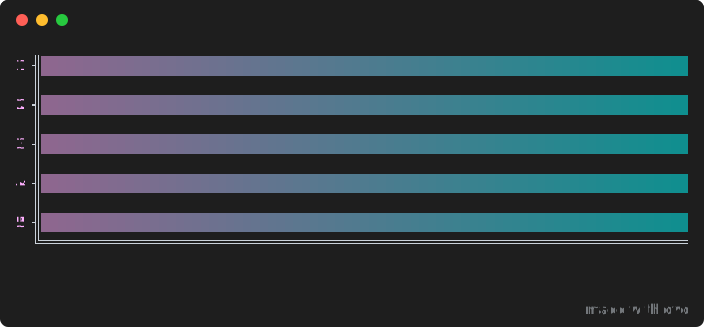
dvd rec captures an interactive PTY session to an asciinema v2 .cast file. Exit the shell or press Ctrl+D to stop.
dvd rec                                          # -> recording.cast
dvd rec session.cast                             # custom path
dvd rec session.cast --command "ls -la --color"  # one-shot, non-interactive
dvd rec session.cast --title "Demo session"      # embed a title
The output is standard asciinema v2, so it works with any asciinema-compatible tool.
Already have .cast files? DVD renders them straight to SVG — dimensions are auto-derived from the recording:
dvd render recording.cast
dvd render recording.cast -o demo.svg --theme dracula --template macos --title "Demo"
dvd render recording.cast --no-cursor --font-size 16 --loop-style reverse
Render options for .cast files
| Option | Alias | Description | Default |
|---|---|---|---|
--output |
-o |
Output SVG path | <file>.svg |
--theme |
-T |
Color theme | dark |
--template |
-m |
macos, windows, minimal |
macos |
--title |
-t |
Window title | |
--font-size |
-s |
Font size (px) | 14 |
--line-height |
-Y |
Line height multiplier | 1.4 |
--padding |
-d |
Content padding (px) | 16 |
--border-radius |
-R |
Window border radius (px) | 8 |
--cursor-blink |
Enable cursor blink | false |
|
--no-cursor |
Hide cursor entirely | ||
--custom-glyphs |
-G |
Render block elements as shapes | true |
--loop-style |
-L |
loop, reverse, rewind, fade |
loop |
--optimize |
-O |
Optimize SVG output | true |
--verbose |
-v |
Verbose output | false |
ANSI & truecolor
|
ASCII art
|
Charts
|
Animated output
|
Git log
|
Directory listing
|
Text selection
|
Color tables
|
More in examples/.
.cd scripts are declarative. Lines starting with # are comments.
| Command | Purpose | Example |
|---|---|---|
Type |
Type text with realistic timing | Type "echo hi" |
Enter |
Execute the current command | Enter |
Sleep |
Pause the recording | Sleep 500ms / Sleep 2s |
Backspace |
Delete characters | Backspace 4 |
Left/Right |
Move the cursor | Left 5 |
Screenshot |
Capture a static frame | Screenshot test-results.svg |
Typing speed can be set per-command with an @<ms>ms suffix:
Type@100ms "Slow typing..."
Type@10ms "Speed typing!"
Editing works as you'd expect:
Type "Hello Wrold"
Backspace 4
Type "orld!"
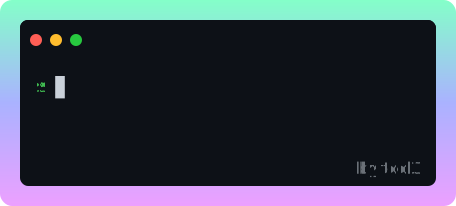
Keyboard navigation and selection are fully supported:
Shift+Left           # Select character left
Shift+Right          # Select character right
Alt+Left             # Move word left
Alt+Right            # Move word right
Alt+Shift+Left       # Select word left
Alt+Shift+Right      # Select word right
Cmd+Left             # Move to line start
Cmd+Right            # Move to line end
Cmd+Backspace        # Delete word
Every setting uses Set <Setting> <value>. Output is the one bare directive.
Output demo.svg
Output path/to/output.svg
Appearance
Set Theme dracula                # see the Themes gallery below
Set Template macos               # macos | windows | minimal
Set Title "My Terminal"
Set Padding 16
Set BorderRadius 8
Set BorderWidth 2
Set BorderColor #ff0000
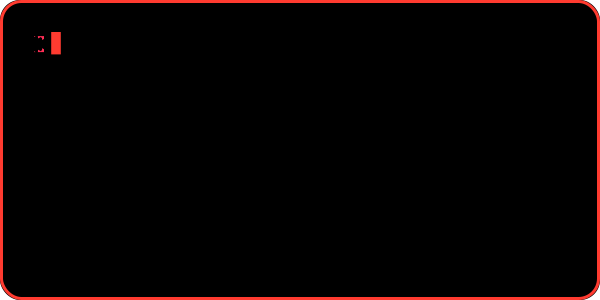
Dimensions — omit for auto-sizing
Set Width 800
Set Height 600
Fonts
# System font — the viewer must have it installed
Set FontFamily "Fira Code"
Set FontSize 14
Set LineHeight 1.4

# Embedded font — guaranteed to render identically everywhere
Set EmbedFont path/to/font.woff2
Use Set EmbedFont for anything public. A system font that the viewer lacks will silently fall back.
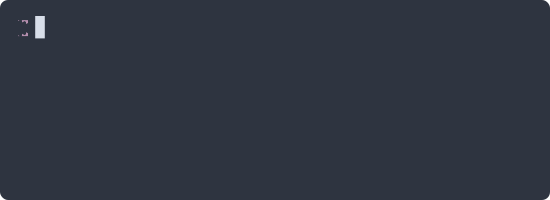



Cursor
Set CursorStyle block      # block | bar | underline
Set CursorColor #ffffff
Set CursorBlink true
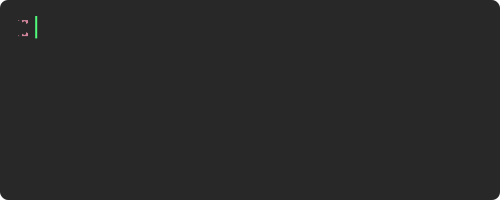
Prompt & typing speed
Set TypingSpeed 50                       # default ms per character

Set PromptPrefix "$ "
Set PromptPrefix "❯ "
Set PromptPrefix "\x1b[95m❯\x1b[0m "     # ANSI escapes work

Header & footer
Set HeaderHeight 40
Set HeaderBackground #333333
Set HeaderBorder true
Set HeaderBorderColor #444444
Set HeaderBorderWidth 1

Set FooterHeight 30
Set FooterBackground #333333
Set FooterBorder true
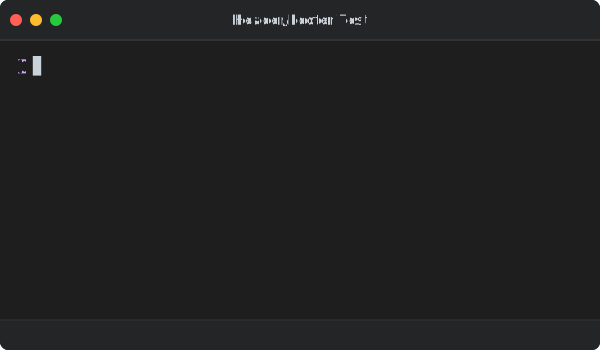
Watermark
Set Watermark "Made with DVD"
Set WatermarkStyle "opacity: 0.5; padding: 10"
Raw SVG markup is allowed, so a watermark can be a link:
Set Watermark `<a href="https://github.com/tool3/dvd-cli">
  <text text-anchor="end">DVD</text>
</a>`
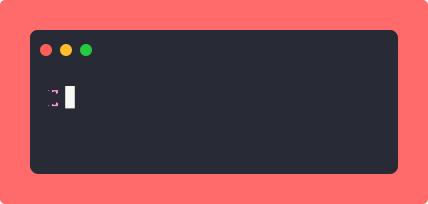
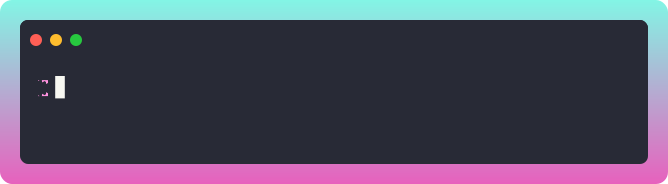
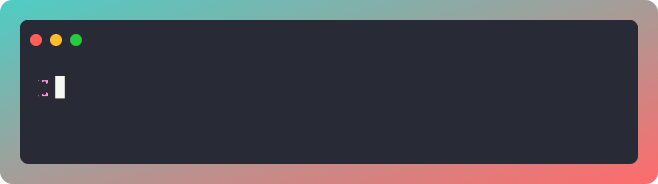
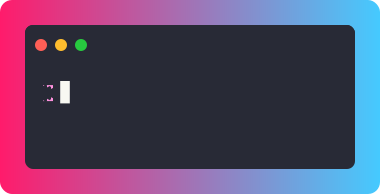
Backgrounds & gradients
# Solid
Set Background #1a1a2e
Set BackgroundPadding 40

# Vertical gradient (default direction)
Set Background gradient(#667eea, #764ba2)

# Horizontal
Set Background gradient(#f093fb, #f5576c:horizontal)

# Multi-stop
Set Background gradient(#ff6b6b, #feca57, #48dbfb, #ff9ff3)
Set BackgroundPadding 60
Execution environment
Set Shell /bin/zsh
Set WorkingDirectory $PWD           # or an absolute path
Playback speed
Set PlaybackSpeed 2      # 2x faster
Set PlaybackSpeed 0.5    # half speed
Full grammar: FORMAT.md.
Four ways to handle the end of a recording — a small thing that makes README animations feel deliberate rather than jarring.
| Style | Behaviour | Tuning |
|---|---|---|
loop |
Restart from the beginning (default) | Set LoopPause 2000 |
reverse |
Play forward, then backward at the same speed | Set LoopPause 2000 |
rewind |
Fast reverse, like rewinding a tape | Set RewindSpeed 10 (def. 5) |
fade |
Fade to black before restarting | Set FadeDuration 1500 |
Set LoopStyle reverse


37 built-in themes. dvd themes lists them all.
Set Theme <theme-name>
a11yDark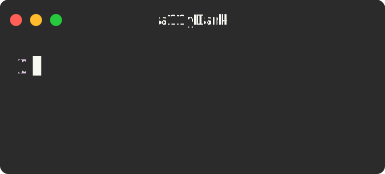 |
base16Dark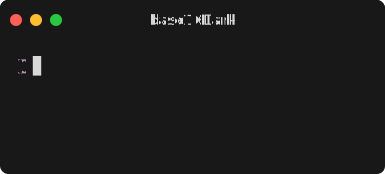 |
base16Light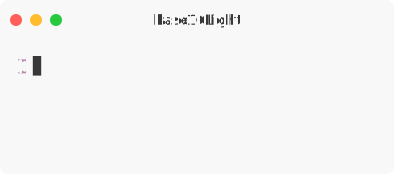 |
blackboard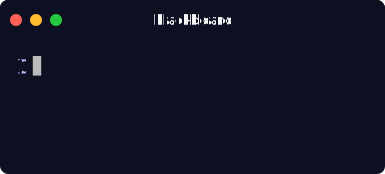 |
catppuccinMocha |
cobalt |
dark |
dracula |
draculaPro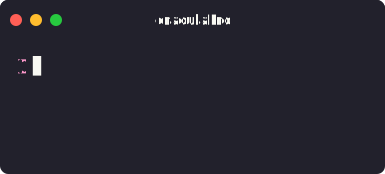 |
duotoneDark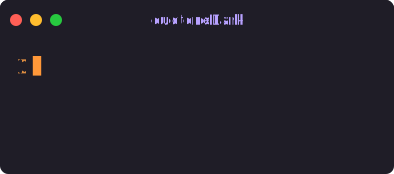 |
githubDark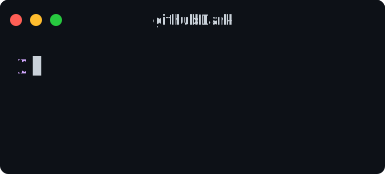 |
githubLight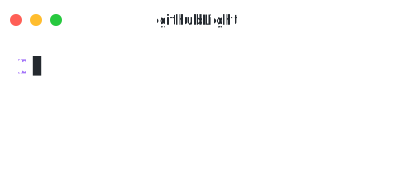 |
gruvboxDark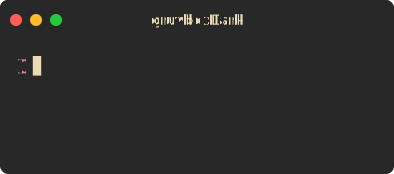 |
gruvboxLight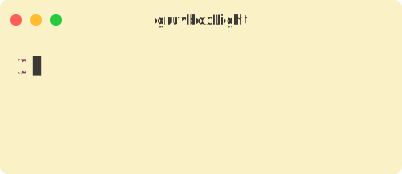 |
hopscotch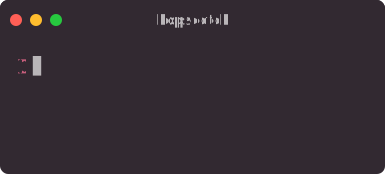 |
lucario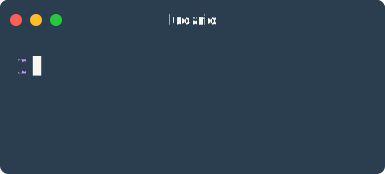 |
material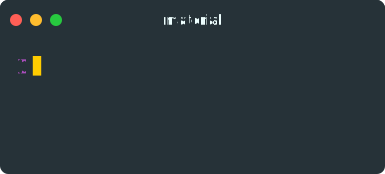 |
monokai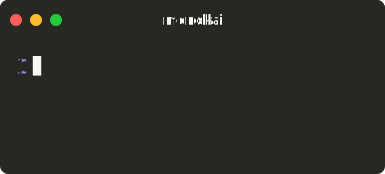 |
night3024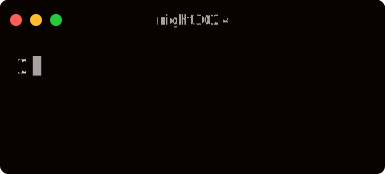 |
nord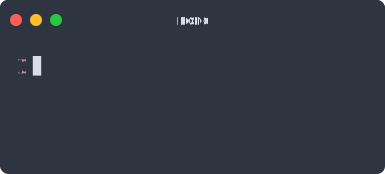 |
oceanicNext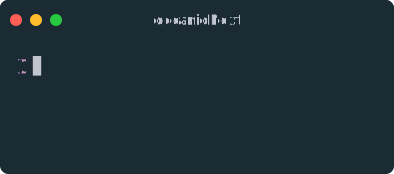 |
oneDark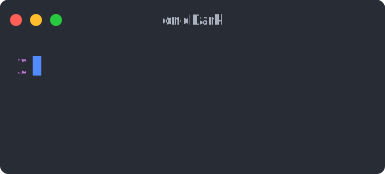 |
oneLight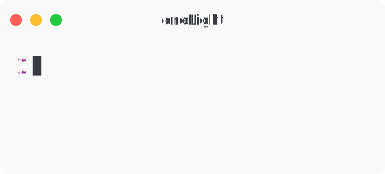 |
pandaSyntax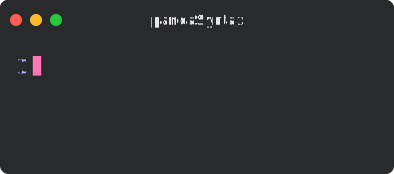 |
paraisoDark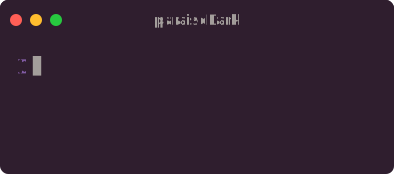 |
seti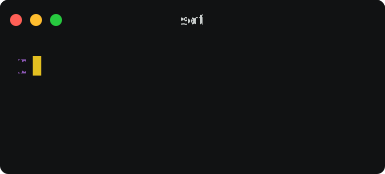 |
shadesOfPurple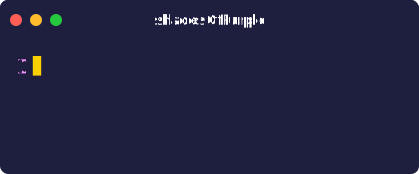 |
solarizedDark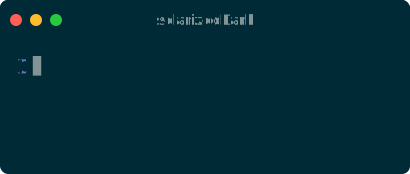 |
solarizedLight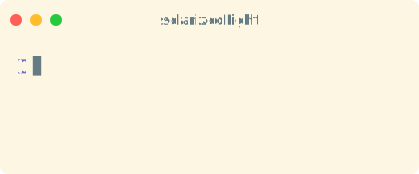 |
synthwave84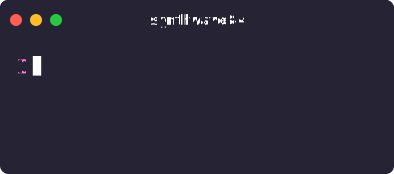 |
terminal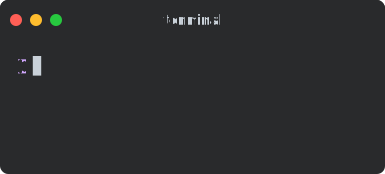 |
tokyoNight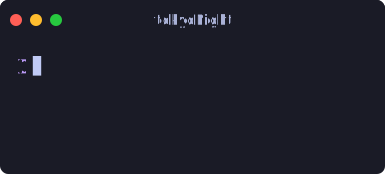 |
twilight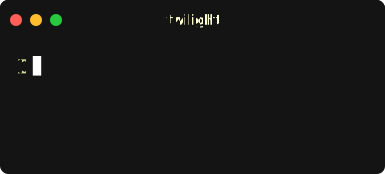 |
verminal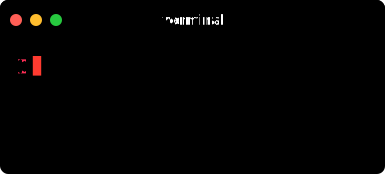 |
vscode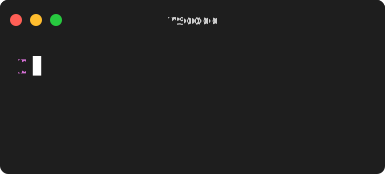 |
yeti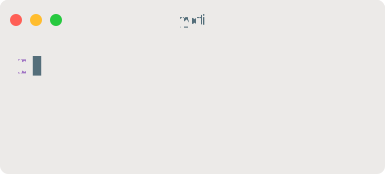 |
zenburn |
Pass a JSON object. Unspecified colors inherit from the current theme, so partial overrides are fine.
Set Theme {"background": "#1a1a2e", "foreground": "#eaeaea", "cursor": "#f39c12", "red": "#e74c3c", "green": "#2ecc71", "blue": "#3498db"}

Set Theme {"background": "#0d1117", "foreground": "#c9d1d9"}

Set Theme {"background": "#0a0a0a", "foreground": "#00ff00", "cursor": "#00ff00"}
All theme properties
| Property | Description |
|---|---|
name |
Theme name (optional) |
background |
Terminal background color |
foreground |
Default text color |
cursor |
Cursor color |
selection |
Selection highlight color |
black, red, green, yellow, blue, magenta, cyan, white |
Standard ANSI colors |
brightBlack, brightRed, brightGreen, brightYellow, brightBlue, brightMagenta, brightCyan, brightWhite |
Bright ANSI colors |
| macos traffic lights |
windows Windows buttons |
minimal no chrome |
 |
 |
 |
DVD ships two engines. Filmstrip is the default and is right for almost everyone. SMIL is a targeted fix for one specific problem.
Each unique row is emitted once as an SVG <symbol> and referenced from every frame that uses it via <use>. Frame cadence comes from CSS @keyframes with step-end visibility switching.
- Smaller files. Size scales with the number of unique rows, not frames. Repetitive output — prompts, ASCII art, mostly-static screens — compresses dramatically.
- Well-optimized on desktop browsers, which is where README and docs traffic lands.
- Can stutter at 120Hz on mobile Safari. Every frame switch goes through the browser's CSS style-resolution pipeline, which adds per-tick overhead on some devices.
Each frame is its own <g> group, and visibility is switched by a native SVG <animate attributeName="visibility">. The SVG engine pre-computes the schedule and paints only the active frame.
- Smoother on 120Hz, mobile Safari, and iOS Chrome — the native path skips CSS style resolution entirely.
- Larger files. Size scales with total frame count rather than unique rows: typically 2–4× filmstrip, more for long or highly-varied recordings.
- SMIL is less actively maintained in browser specs than CSS animations, so treat it as a tool for a known problem rather than a default.
| You want… | Use |
|---|---|
| A README or docs embed on desktop | Filmstrip |
| The smallest possible file | Filmstrip |
| Long recordings with lots of repeated prompt lines | Filmstrip |
| Buttery-smooth playback on iOS / 120Hz screens | SMIL |
| Short, high-FPS animations where smoothness matters | SMIL |
dvd script.cd                          # render to script.svg
dvd script.cd -o output.svg            # custom output
dvd script.cd --verbose                # detailed output

dvd new my-demo                        # scaffold a script
dvd new my-demo --template showcase    # scaffold from a template
dvd themes                             # list all themes
dvd validate script.cd                 # check syntax without rendering
dvd rec session.cast                   # record a live session
dvd render session.cast -T dracula     # render a .cast to SVG

command | dvd -o output.svg            # pipe mode
All options
| Option | Alias | Description | Default |
|---|---|---|---|
--output |
-o |
Output file path | <input>.svg |
--verbose |
-v |
Show detailed output | false |
--optimize |
-O |
Optimize SVG output | true |
--smil |
Use the SMIL engine | false |
|
--loop |
-l |
Loop the animation | true |
--loop-style |
-L |
loop, reverse, rewind, fade |
loop |
--loop-pause |
-P |
Pause before loop restarts (ms) | 0 |
--pause-at-end |
-p |
Pause at end before looping (ms) | 1000 |
--fade-duration |
-F |
Fade duration for fade style (ms) | 1500 |
--rewind-speed |
-r |
Speed multiplier for rewind | 5 |
--fps |
-f |
Frames per second | |
--playback-speed |
-S |
Playback speed multiplier | 1 |
--theme |
-T |
Color theme | dark |
--template |
-m |
macos, windows, minimal |
macos |
--title |
-t |
Window title | |
--width |
-W |
Width in pixels | auto |
--height |
-H |
Height in pixels | auto |
--font-size |
-s |
Font size in pixels | 14 |
--font-family |
-y |
Font family name | |
--line-height |
-Y |
Line height multiplier | 1.4 |
--letter-spacing |
-a |
Letter spacing in pixels | 0 |
--padding |
-d |
Content padding (px) | 16 |
--border-radius |
-R |
Border radius (px) | 8 |
--border-color |
-C |
Border color (hex) | |
--border-width |
-B |
Border width (px) | |
--background |
-A |
Outer background color or gradient | |
--background-padding |
-n |
Padding around the window (px) | 0 |
--cursor-style |
-c |
block, bar, underline |
block |
--cursor-color |
-k |
Cursor color (hex) | |
--cursor-blink |
-K |
Enable cursor blink | true |
--custom-glyphs |
-G |
Block elements as geometric shapes | true |
--header-background |
-b |
Header background color (hex) | |
--header-height |
-e |
Header height in pixels | |
--header-border |
-D |
Show header border | |
--header-border-color |
-E |
Header border color (hex) | |
--footer-background |
-g |
Footer background color (hex) | |
--footer-height |
-i |
Footer height in pixels | |
--footer-border |
-I |
Show footer border | |
--footer-border-color |
-J |
Footer border color (hex) | |
--footer-border-width |
-j |
Footer border width (px) | |
--watermark |
-w |
Watermark text |
Do animated SVGs actually work in GitHub READMEs?
Yes. CSS and SMIL animations run when an SVG is loaded as an image. Two things to know:
- Use
raw.githubusercontent.comURLs, notgithub.com/.../blob/...— blob URLs serve an HTML page, so the image will appear broken. - GitHub proxies and caches images through camo. If you update an SVG in place and the old one still shows, append a cache-buster:
demo.svg?v=2.
Links inside an SVG are not clickable when it is embedded as an image.
My output is several megabytes. Is that a problem?
Usually not — SVG is repetitive text and gzips 10–60×, so a 2.4 MB file is ~39 KB on the wire. What does matter is DOM size in the browser for very long recordings.
If a recording feels heavy: keep it under ~30 seconds, raise Set TypingSpeed so fewer frames are generated, lower --fps, and stay on the default filmstrip engine.
The font looks wrong on someone else's machine.
Set FontFamily references a font by name and requires the viewer to have it installed. For anything public, use Set EmbedFont path/to/font.woff2 — it embeds the glyphs so rendering is identical everywhere.
Can I get a GIF or MP4?
Not today — DVD outputs SVG. If you need a raster video for social media or slides, use VHS.
Does dvd rec work on Windows?
Recording uses a PTY via node-pty. On Windows it falls back to COMSPEC (cmd.exe). SVG rendering itself needs no PTY and works everywhere Node 18+ runs.
What exactly are the dependencies?
Rendering needs no external binaries — no ffmpeg, no headless browser, no video encoder. That is the claim.
The npm package does have normal Node dependencies: the dvdrw rendering library, shellfie, yargs, and node-pty (a native module used only by dvd rec).
- dvd — the rendering library behind this CLI
- shellfie — static terminal screenshots as SVG
- shellfie-cli — the screenshot CLI
- chartscii — ASCII charts, great input for DVD
- VHS — GIF/MP4 terminal recordings
Issues and PRs welcome.
git clone https://github.com/tool3/dvd-cli
cd dvd-cli
npm install
npm run build
npm test
MIT © tool3